Related Blogs

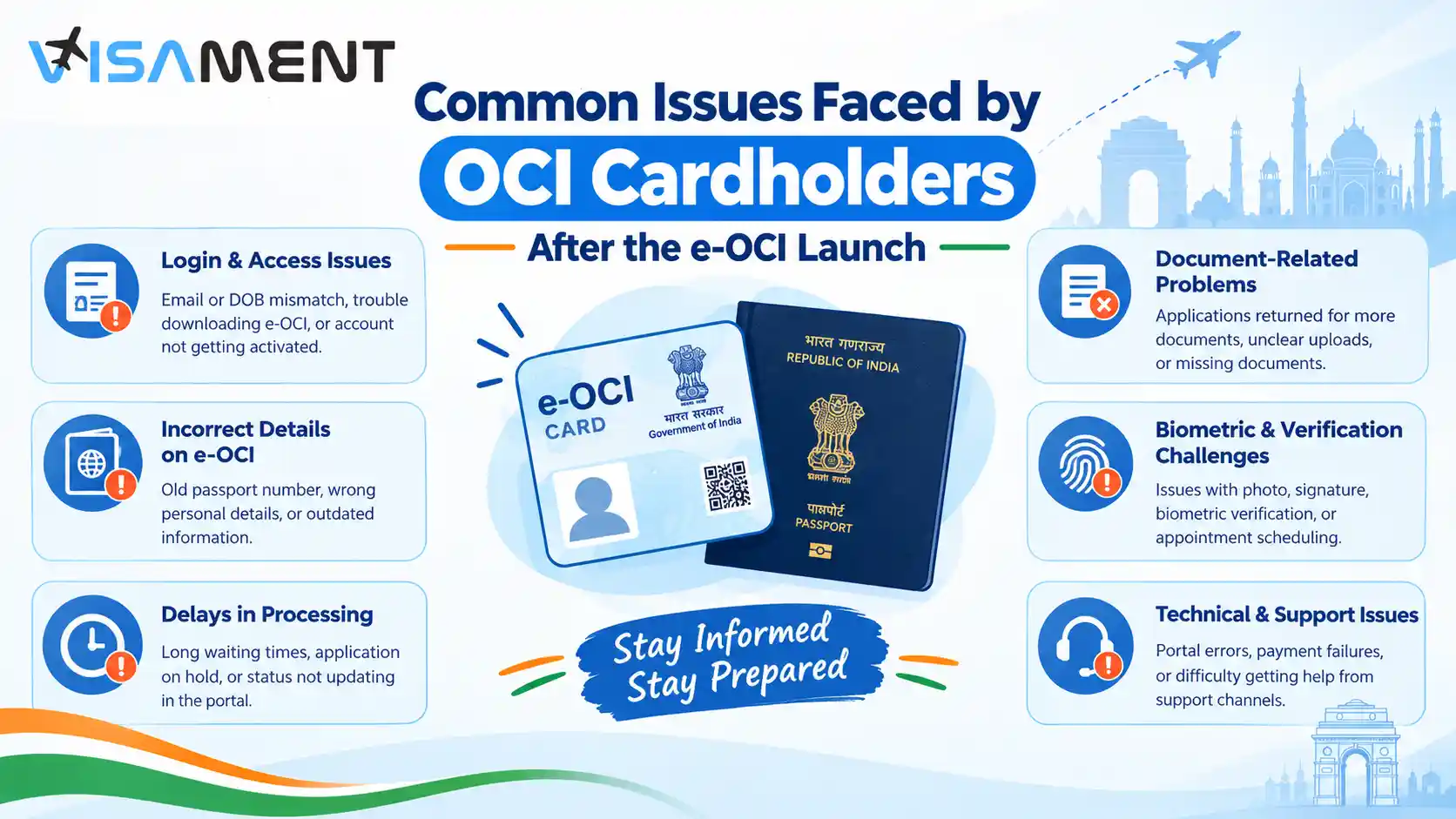
The launch of the Electronic Overseas Citizen of India (e-OCI) Card has made it easier for OCI cardholders to access a digital version of their OCI card. However, existing holders may have questions about portal login, registered email addresses, downloading the e-OCI card, passport updates, and travel documentation.
The Ministry of Home Affairs introduced e-OCI as a digital version of the existing OCI card. The facility does not change the validity or status of an already-issued physical OCI card. Existing cardholders can access their e-OCI through the official OCI Services Portal.
If you are experiencing an e-OCI-related problem, understanding the cause and following the correct procedure can help you resolve it without submitting an unnecessary new OCI application.
One of the first steps in accessing e-OCI is signing in to the official OCI Services Portal. Some cardholders may experience login difficulties because they have forgotten their password, are using an incorrect account, or no longer have access to their registered email address.
Avoid creating multiple accounts or submitting a fresh OCI application simply because you cannot log in. First, establish whether the problem concerns your account or your existing OCI record.
Some OCI holders applied many years ago and may no longer use the email address associated with their original registration. This can create difficulties when trying to access e-OCI services.
The official OCI portal provides an Email ID Updation facility under OCI Miscellaneous Services.
Keep your OCI card number, date of birth, and passport details available because these may be required to identify your record.
 Also Want to Know About OCI Application Number Not Found Check Now!
The “Record Not Found” message can be confusing, particularly for people whose OCI cards were issued many years ago.
The error does not automatically mean that your OCI card has been cancelled or that you must apply for a new one. The official e-OCI FAQ advises users to verify the particulars entered and contact the relevant authority or helpdesk if the issue continues.
If the information is correct but the error continues, contact the designated OCI helpdesk, the relevant Indian Mission or Post, or the FRRO, as applicable.
Have questions? Our experts guide you through every step of the OCI Card Service – no confusion, no delays.
Consult an Expert TodayAfter signing in, some users may be unsure where to find the e-OCI option or may not see the expected card details.
The official procedure is to sign in to the OCI Services Portal, select the e-OCI tab on the dashboard, review the displayed OCI details, and choose the option to generate the e-OCI card.
Do not assume that a missing dashboard option means your OCI status has changed. The issue should be investigated through the official portal.
Also Want to Know About Old Passport Details are Showing After OCI Updation Check Now!A slow download can make users think that the OCI portal has crashed. However, the official e-OCI explains that generation may occasionally take longer because of backend processing and system validation.
A delay alone does not establish that the portal is unavailable or that your OCI record has a problem.
The official OCI portal permits each e-OCI card to be downloaded a maximum of five times per day.
If you reach this limit, you may not be able to generate another download during the same day.
Wait until the following day before attempting another download. To avoid unnecessary downloads, save the PDF securely as soon as it has been generated and keep a backup on a device you can access while travelling.
Passport-related confusion is particularly important for OCI holders who have recently renewed their foreign passports.
The e-OCI card reflects the particulars available in the relevant OCI records. If an update to passport details is required under the prevailing rules, the prescribed update process must be completed and approved before the updated details appear.
A new passport does not automatically mean you need to submit a fresh OCI application. Follow the current instructions for updating an existing record.
Some users may not receive a one-time password (OTP) when completing an account-related process.
Possible causes include an incorrect email address or mobile number, a message being filtered into the spam folder, or a temporary delivery delay.
Never share your OTP or password with an unauthorised person offering to fix your account.
One of the most important questions following the e-OCI launch is whether cardholders must still carry their physical OCI booklet.
The official guidance states that the e-OCI card can be presented digitally at immigration checkpoints and to airlines whenever required. Existing physical OCI cards remain valid, and the e-OCI facility does not change the holder's existing OCI status.
However, travellers should not assume that an e-OCI PDF replaces every other travel document.
Before travelling, check the requirements that apply to your journey and carry your valid foreign passport. Save the e-OCI PDF on your phone so that it remains accessible without an internet connection. Keeping a backup copy is also sensible.
If an airline gives you conflicting information, confirm the applicable requirements with the airline and the relevant Indian Mission or official authority before departure.
Families may want to manage several OCI records through one account, especially when helping children or elderly relatives.
According to the official e-OCI FAQ, each OCI card requires a separate Email ID update request before it can be linked to a common user account.
Do not assume that linking one family member's email address automatically updates every other family member's OCI record.
A cardholder may notice an incorrect name, nationality, passport number, or other personal detail. Such discrepancies should not be ignored, especially before international travel.
Downloading an e-OCI card does not itself correct the underlying OCI record. The official FAQ states that changes to personal particulars must be made through the prescribed OCI Miscellaneous Services or another procedure notified by the Government of India.
Review the information carefully. If a correction is needed, identify the appropriate service and provide the supporting documents required by the official process.
Contact the relevant official authority if:
Use the contact details published on the official OCI Services Portal or the relevant Indian Mission or Post. Keep your OCI number and relevant application information available, but share sensitive personal details only through appropriate official channels.
The e-OCI launch gives existing OCI cardholders a convenient way to access a digital version of their OCI card. Most questions can be addressed by checking the registered email address, verifying existing OCI details, following the official download steps, and completing any required passport or personal-detail updates.
If you encounter an error, do not immediately assume that your OCI status has changed or submit a fresh application. Start with the official e-OCI FAQ and contact the relevant authority if the issue remains unresolved.
For assistance understanding the appropriate OCI service or preparing an application for an eligible update, Visament can help you identify the relevant process and organise your supporting documents.
No. The officials describe e-OCI as a digital representation of the OCI card. Existing physical OCI cards remain valid.
Yes. The official e-OCI download facility is free of charge.
Each e-OCI card can be downloaded a maximum of five times per day. You can try the following day after reaching the limit.
Check the particulars entered and verify that you are accessing the correct account. If the error continues, contact the designated helpdesk or relevant Indian Mission, Post, or FRRO.
The official portal provides an Email ID Updation facility under OCI Miscellaneous Services. Follow the prescribed process and wait for approval before attempting to access your record through the updated email address.
Not automatically. Follow the current rules for updating passport particulars and complete the prescribed process wherever required.
Official guidance allows the digital e-OCI card to be presented at immigration checkpoints and to airlines whenever required. Carry your valid foreign passport and verify the applicable travel-document requirements before departure.
No. Downloading the digital card does not grant additional rights or change the OCI status already granted.
Check your registered contact details and spam folder, wait briefly, and try again. Contact the designated helpdesk if the problem persists.
Yes. The official FAQ permits printing for personal reference. You must still comply with the document requirements applicable at the time of travel.
Vipul Jain is the Co-Founder of Visament, a trusted platform dedicated to simplifying Indian immigration, consular, and NRI services for applicants across the globe. With extensive expertise in OCI cards, Indian passport services, visa assistance, apostille and document legalization,... See Full Bio

Talk to our documentation experts for free guidance on your application.
Can OCI Cardholders Open an NRE Account in India?
Documents Required for OCI Card for a Minor Child: Complete Checklist
e-OCI Card Processing Time 2026: Real Applicant Timelines
Does OCI Card Expire? OCI Card Validity & Reissue Rules
Documents Required for OCI Miscellaneous Services: Complete Checklist

_1745908515.webp)
When you visit a website, it may store data about you using cookies and similar technologies. Cookies can be important for the basic operations of the website and for other purposes. You get the option of deactivating certain types of cookies, even so, doing that may affect your experience on the website.
It is required to permit the basic functionality of the website. You may not disable necessary cookies.
Used to provide advertising that matches you and your interests. May also be used to restrict the number of times you see an advertisement and estimate the effectiveness of an advertising campaign. The advertising networks place them after obtaining the operator's permission.
Permits the website to recognize the choices you make (like your username, language, or the region you are in). Also provides more personalized and enhanced features.
Aid the website operator to determine how the website performs, how visitors interact with the site, and whether there are any technical issues.